> For the complete documentation index, see [llms.txt](https://support.4cast.world/llms.txt). Markdown versions of documentation pages are available by appending `.md` to page URLs; this page is available as [Markdown](https://support.4cast.world/archive-v12-userguide/triggering-the-mvp-from-a-daw/ableton-configuration.md).
# Ableton Configuration
Setting up playback with Ableton as a MIDI source.
If you perform with an Ableton playback session, MVP can easily be triggered by MIDI notes straight out of your Ableton session. First, make sure your MVP has been configured with MIDI mappings. See [Video Configuration](/archive-v12-userguide/resources-archive/quickstart/video-configuration.md) and [DMX Lighting Configuration](/archive-v12-userguide/resources-archive/quickstart/dmx-lighting-configuration-beta.md) for more details on this step.
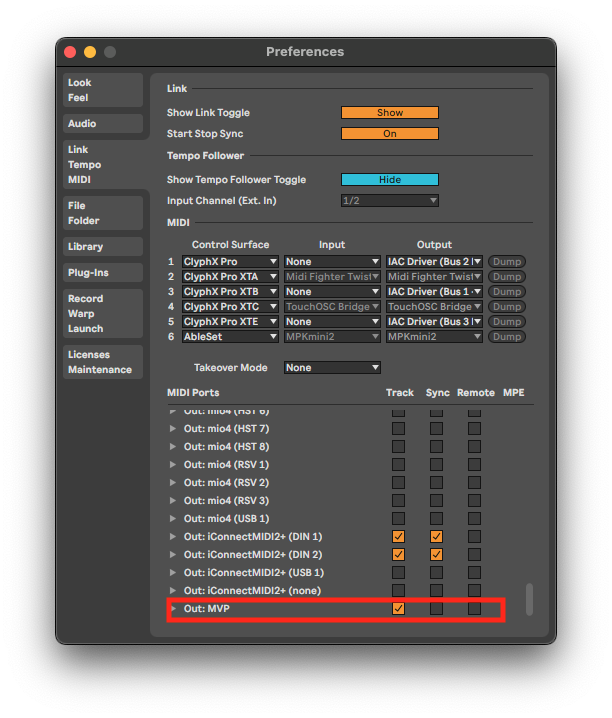
Open your session and click Live > Settings > Link Tempo MIDI to access your MIDI settings. With the MVP connected to your computer via the USB-C ‘host’ port you should see ‘MVP’ listed under ‘MIDI Ports’. Make sure the ‘track’ box is checked on the MVP ‘out’ so that Ableton can send MIDI notes to the MVP. Currently the other settings will not impact the MVP either way, however future updates may make advantage of additional settings.
In your session add a MIDI track and select the MVP as the output. Below the output selection, select the appropriate MIDI channel based on what signal you want to send to the MVP. By default the MVP receives video triggers on MIDI channel 1 and lighting triggers on channel 3.\
Pencil notes into MIDI clips on the track at the points in your arrangement where you want to trigger playback on the MVP. You can also make specific clips in the Session view to trigger lighting and video cues in the MVP. \
\
Make sure each note you pencil corresponds to the correct MIDI mapping you configured on the MVP. When you playback your session, Ableton should output MIDI notes to the MVP in time with your music to sync your video or lights.
To trigger a stop of playback on the MVP, send MIDI note MIDI note 0/C-2. Remember the MVP plays back independently of your Ableton session and only receives MIDI information to trigger the start of a clip, so stopping playback on your Ableton session alone will note stop playback on the MVP.\
{% hint style="info" %}
PRO TIP: Render your song videos into "sections" to match the song arrangement, and trigger them individually per-section with unique MIDI notes. This allows much more flexibility to change the structure on the fly and not have to change what you program in the MVP.
{% endhint %}