> For the complete documentation index, see [llms.txt](https://support.4cast.world/llms.txt). Markdown versions of documentation pages are available by appending `.md` to page URLs; this page is available as [Markdown](https://support.4cast.world/archive-v12-userguide/5.-triggering-your-media/daw-computer-triggering/network-midi-rtp-midi-setup.md).
# Network MIDI (RTP-MIDI) Setup
Network MIDI (RTP-MIDI) allows you to send MIDI to the MVP over a standard WiFi or Ethernet network.
This is the preferred method for long-distance runs (e.g., FOH to Stage) where USB cables are not feasible.
> ⚠️ WI-FI
>
> While Network MIDI does work over Wi-Fi, it can be susceptible to network latency and jitter. For live performances, we recommend using a hardwired Ethernet connection.
***
### 1. Network Connection (choose one)
#### WiFi
1. Open the MVP UI, and click on the WIFI icon in the top right corner
2. Connect to your WiFi network (Your router will handle the IP settings automatically)
3. Ensure your Computer is connected to the same WiFi network
#### Ethernet
1. Connect: Plug an Ethernet cable into the MVP's Ethernet Port.
2. Network: Connect the other end to your computer directly or to a Network Switch.
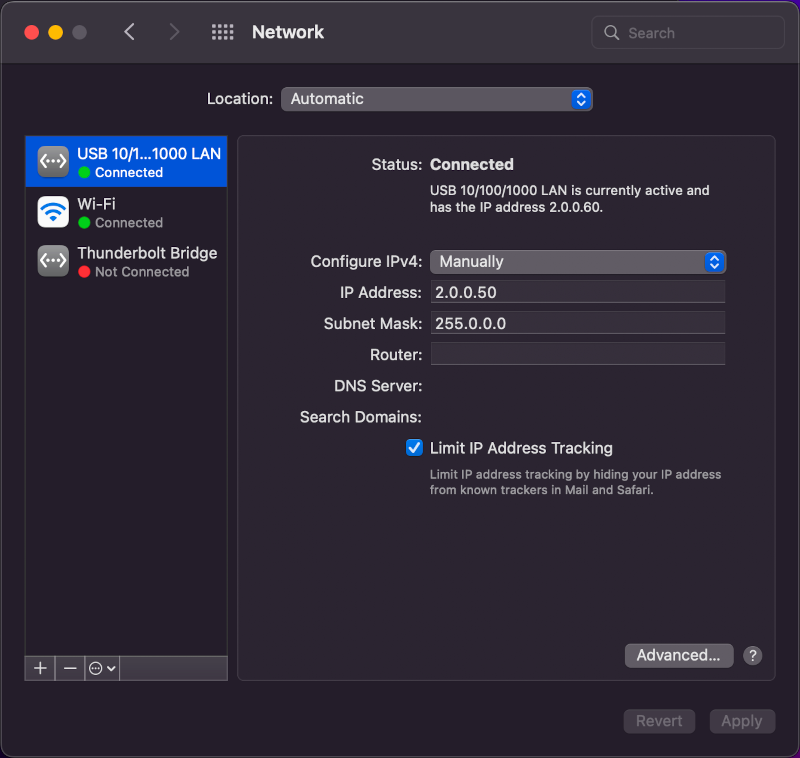
3. IP Settings: Ensure your computer and the MVP are on the same IP range.
* *Default MVP IP:* `2.0.0.111`
* *Computer:* Set to Static IP (e.g., `2.0.0.50`), Subnet `255.0.0.0`.
Mac:
Windows:
***
### 2. macOS Setup (Native)
Macs have RTP-MIDI built directly into the operating system.
Step 1: Open MIDI Studio
1. Press Command + Space to open Spotlight.
2. Type "Audio MIDI Setup" and press Enter.
3. In the top menu bar, click Window > Show MIDI Studio.
Step 2: Configure Network
1. In the MIDI Studio window, double-click the Globe Icon (labeled "Network").
* *Or in the top menu bar, click MIDI Studio > Open MIDI Network Setup.*
2. Look at the "My Sessions" box (top left). If it is empty, click the + button to create a new session.
1. Rename: Click on the new session name and rename it to "Network MVP".
2. Enable: Click the Checkbox next to the session name to enable it.
Step 3: Connect to MVP (Crucial Step)
In the "Directory" box (bottom left), you will likely see two devices listed for the MVP.
* `MVP` (Short name)
* `MVP/RtMidiIn Client-MVP` (Long name)
⚠️ You MUST select the one with the LONG NAME.
1. Select `MVP/RtMidiIn Client-MVP`.
2. Click the Connect button.
3. The device should move to the "Participants" list on the right.
***
### 3. Windows Setup (rtpMIDI)
Windows does not support this natively, so you must use the free rtpMIDI app.
1. Download: Install [rtpMIDI](https://www.tobias-erichsen.de/software/rtpmidi.html).
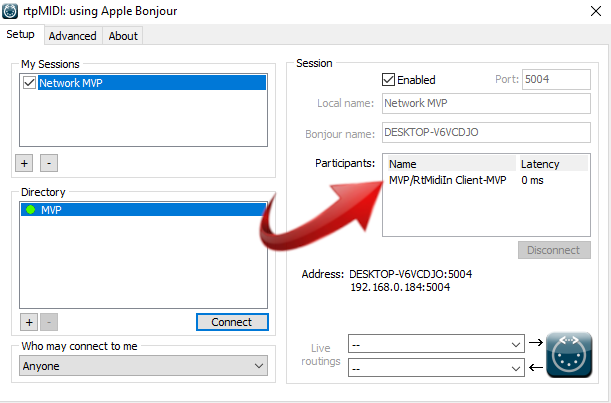
2. Launch: Open the program. The interface is almost identical to the macOS version above.
3. Create Session: Click the + under "My Sessions" and change Local Name to "Network MVP".
1. Enable: Check the box above Local Name.
2. Connect: In the Directory, select the Long Name device (`MVP/RtMidiIn Client-MVP`) and click Connect. You will see it move to the "Participants" list.
***
### 4. Testing Your Connection
#### Connecting your DAW (Live, ProTools, etc)
In a DAW, you will see Network MVP in your MIDI settings.
Set your MIDI track's output too Network MVP.
To verify the connection without opening a DAW, use a virtual keyboard:
#### macOS: MidiKeys (Simplest)
1. Download MidiKeys (Free).
2. Set Destination to "Network MVP".
3. Press keys on your computer keyboard to trigger the MVP.
#### Cross-Platform: VMPK
If you prefer VMPK (Virtual MIDI Piano Keyboard), follow these steps:
"Unverified Developer" Fix (macOS):
If you get an error saying the app cannot be opened:
1. Right-Click the VMPK app icon.
2. Select Open.
3. Click Open in the popup dialog.
Configuration:
1. Open VMPK.
2. Go to Edit > MIDI Connections.
3. MIDI OUT Driver: Select CoreMIDI (Mac) or Windows MM (PC).
* *Do NOT select "Network" here.*
4. Output Connection: Select "Network MVP" (the session you created earlier).
5. Click OK. You can now play the on-screen keys to test.