> For the complete documentation index, see [llms.txt](https://support.4cast.world/llms.txt). Markdown versions of documentation pages are available by appending `.md` to page URLs; this page is available as [Markdown](https://support.4cast.world/archive-v12-userguide/5.-triggering-your-media/daw-computer-triggering/logic-pro-configuration.md).
# Logic Pro Configuration
How to create a MIDI output track and route it to the MVP to play along with the arrangement.
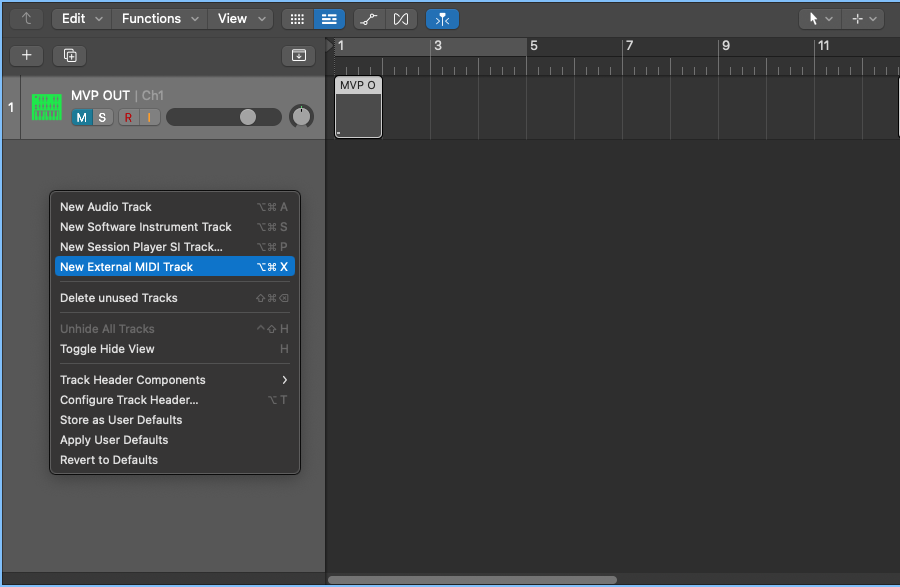
### 1. Create a new EXTERNAL MIDI track
Right click in the track header area, and select "New External MIDI Track". \
Name the track "MVP OUT" or something similar.
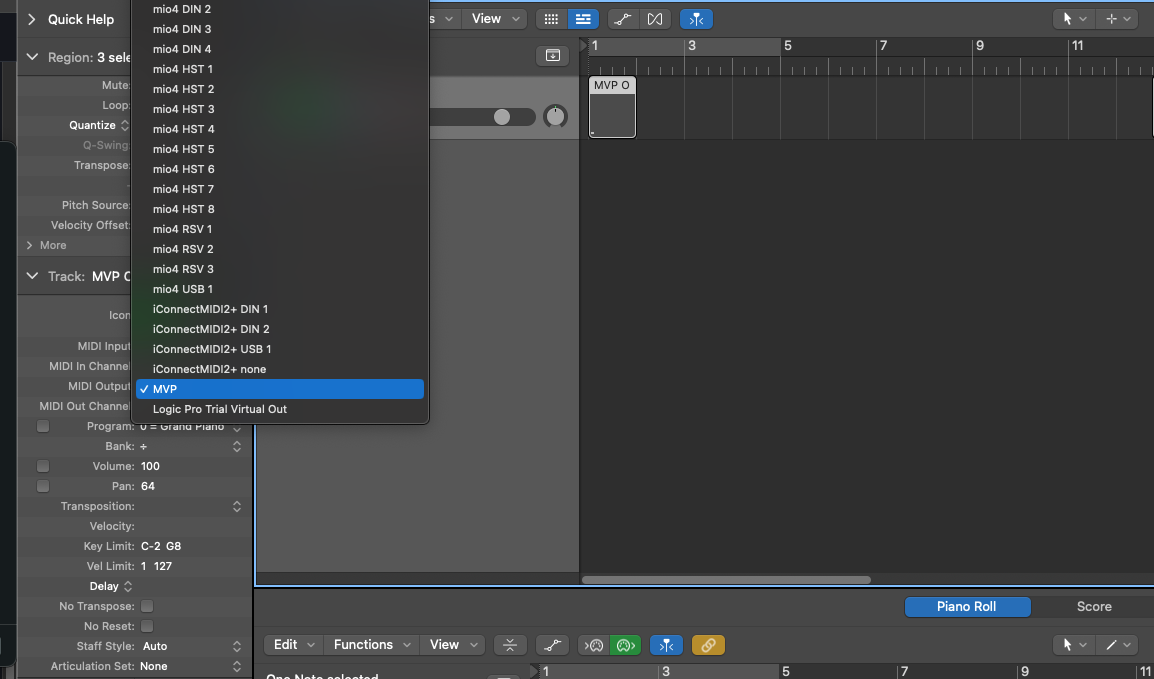
### 2. Select MVP from MIDI Output menu
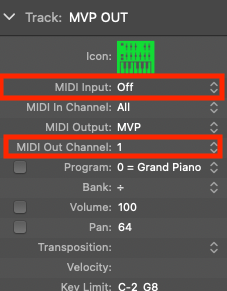
### 3. Set MIDI track settings as needed.
* Set MIDI input as OFF if you're just triggering from arrangement based MIDI.
* Set MIDI OUT channel as 1 for video triggers or 3 for lighting triggers
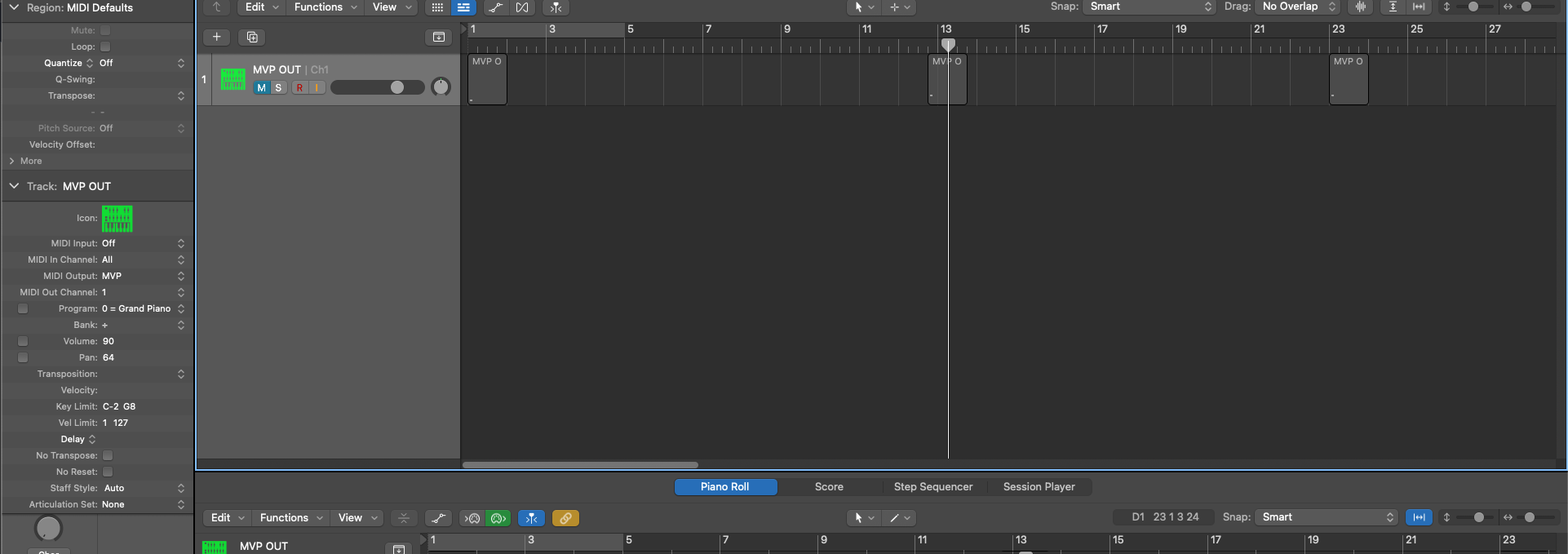
### 4. Add MIDI to the track's arrangement to trigger the MVP