> For the complete documentation index, see [llms.txt](https://support.4cast.world/llms.txt). Markdown versions of documentation pages are available by appending `.md` to page URLs; this page is available as [Markdown](https://support.4cast.world/archive-v12-userguide/5.-triggering-your-media/daw-computer-triggering/ableton-live-setup.md).
# Ableton Live Setup
This guide covers the steps to send MIDI notes from Ableton Live to the MVP.
> Note: This guide assumes basic familiarity with Ableton Live's interface. For general instruction on using the software, please refer to the [\[Official Ableton Live Manual\]](https://www.ableton.com/en/manual/welcome-to-live/).
***
### 1. Configure MIDI Preferences
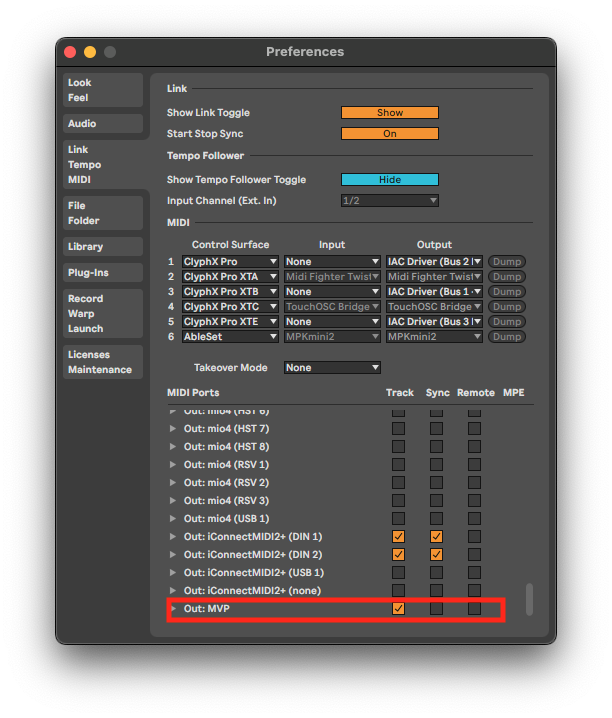
First, we must configure Ableton to send data to the MVP.
1. Connect the MVP's **HOST** port to your computer via USB.
2. Open Ableton Live.
3. Open **Preferences** (macOS: `Live > Settings...` | Windows: `Options > Preferences`).
4. Navigate to the **Link Tempo MIDI** tab.
5. Scroll down to the **MIDI Ports** section.
6. Locate Output: **MVP**.
7. Ensure the **Track** checkbox is enabled (On).
* *This allows MIDI notes from your tracks to be sent to the device.*
***
### 2. Create a MIDI Track
1. Create a new MIDI Track (`Shift + Cmd + T` / `Shift + Ctrl + T`).
2. Rename the track (e.g., "MVP VIDEO").
***
### 3. Route the Output
Now we configure where this track sends its notes.
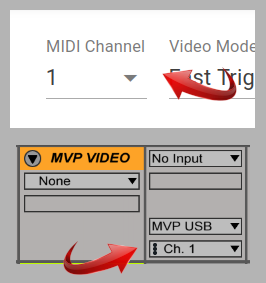
1. Locate the I/O section on the track (if hidden, press `Cmd/Ctrl + Option + I`).
2. **MIDI From**: Select **No Input**.
3. **MIDI To**: Select **MVP**.
4. **Channel**: Set to same Channel number you have in the MVP UI.
***
### 4. Program Your Cues
1. Insert a MIDI Clip: Double-click a slot (Session View) or highlight an area and press `Shift + Cmd + M` (Arrangement View).
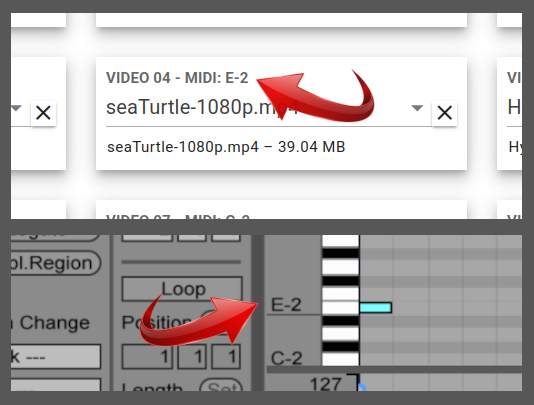
2. Draw a Note: Open the Clip, View/Piano Roll.
3. Match the Assignment: Draw a note that matches your file assignment in the MVP.
* *Example:* If your video is assigned to E-2, draw a E-2 note in Ableton.
4. Play: Press Play in Ableton. The MVP should trigger instantly.
Note: In most circumstances, you will want to disable the **Loop** setting next to the piano roll.
***
### 5. Stopping Playback (Blackout)
Remember that stopping Ableton does not automatically stop the MVP.
To program a "Stop" cue in your song:
* Draw a note at C-2 (Note 0).
* This triggers the MVP's default Blackout function.