> For the complete documentation index, see [llms.txt](https://support.4cast.world/llms.txt). Markdown versions of documentation pages are available by appending `.md` to page URLs; this page is available as [Markdown](https://support.4cast.world/archive-v12-userguide/3.-lighting-setup/recording-artnet-lighting-software.md).
# Recording ArtNET - Lighting Software
The MVP supports recording and playback of up to 16 Universes. This guide covers how to record DMX lighting clips onto your MVP using PC or Mac based lighting software.
> ⚠️ FIRMWARE CHECK
>
> Please ensure your MVP is running the latest version 1.2.x firmware before proceeding.
>
> *To check for updates instructions, read the \[*[*Update your MVP Guide*](/archive-v12-userguide/1.-getting-started/update-your-mvp.md)*].*
***
### 1. The Concept (USB Passthrough)
In the past, recording from a computer required a complex network switch setup.
Now, the MVP supports **USB-ArtNET Passthrough**.
How it works:
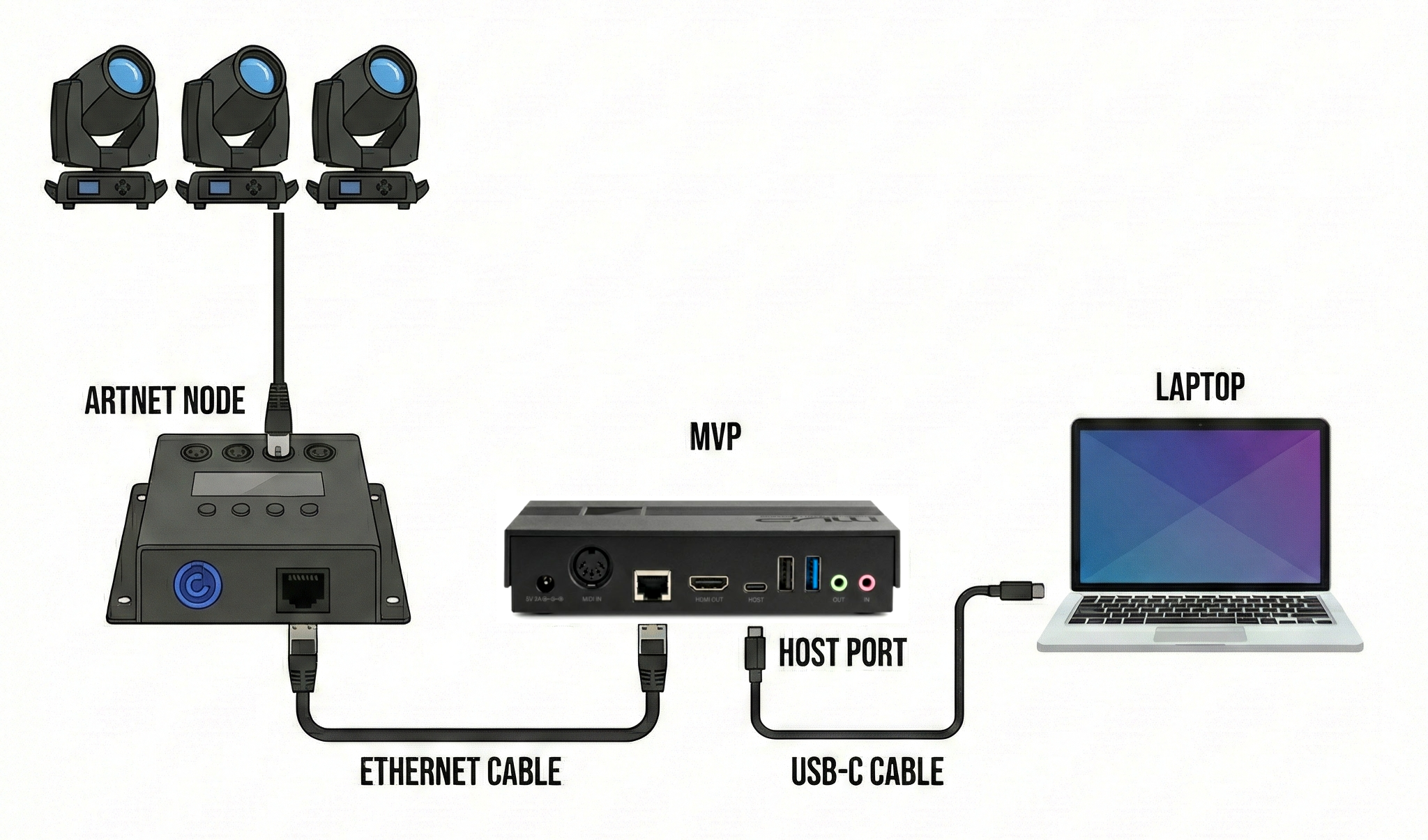
1. Your Laptop sends ArtNet data to the MVP via the USB-C cable.
2. The MVP records this data internally.
3. Simultaneously, the MVP broadcasts/forwards that data out of its Ethernet port to your ArtNET Node.
Result: You can see your physical lights react in real-time while you record, with zero latency and no network switch required.
***
### 2. Hardware Connections
1. Laptop to MVP: Connect your computer to the MVP's HOST (USB-C) port.
2. MVP to Lights: Connect the MVP's ETHERNET port directly to your ArtNet Node.
***
### 3. Network Configuration (Crucial Step)
Because the MVP is acting as a bridge between your computer and your lights, we need to ensure the IP addresses are set correctly on both your MVP and ArtNET node.
#### A. The Ethernet Side (MVP -> Node)
This connection uses the standard ArtNet "2.x.x.x" range. Do not use other IP ranges unless you are experienced with ArtNET configurations.
* **ArtNet Node**: Set your node to a static IP (e.g., `2.0.0.10`) and Subnet Mask `255.0.0.0`.
* **MVP Ethernet**: Go to **Dashboard** > **Settings** > **Ethernet** and ensure the MVP is set to a compatible static IP (Default: `2.0.0.111`) and Subnet Mask `255.0.0.0`.
#### B. The USB Side (Laptop -> MVP)
This connection uses a separate private network created through the USB cable by the MVP.
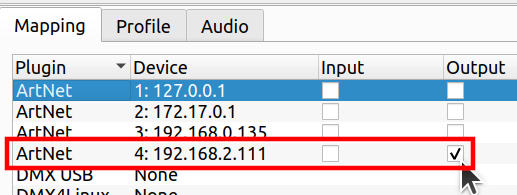
* **Windows**: The MVP connection appears as `192.168.2.111`.
* **Mac**: The MVP connection appears as `192.168.3.100`.
* *Note: You cannot change these addresses; just ensure your lighting software targets this network interface.*
***
### 4. Software Setup
Configure your lighting software to output ArtNet to the MVP's USB network interface.
Example (Generic):
1. Open your Network/DMX settings.
2. Enable ArtNet Output.
3. **Interface Selection**: Select the network adapter that corresponds to the MVP's USB connection (e.g., `192.168.2.111` or `192.168.3.100`).
* *Do NOT select your Wi-Fi or hardwired Ethernet adapter.*
4. **Enable Broadcast**: Broadcast Mode must be enabled
5. **Universe Mapping**: The MVP supports recording up to 16 Universes. Ensure your software is broadcasting the desired universes (e.g., Univ 1–16).
**ONYX** Lighting Software:
**LightKey** Lighting Software:
**QLC+** Lighting Software:
**Show Buddy** Lighting Software:
***
### 5. Recording Process
#### Step 1: Recording Dialog Box
1. Navigate to the Lighting tab on the MVP UI.
2. Toggle **EDIT MODE** to **ON**.
3. Click the **RECORD NEW CLIP** button on the right sidebar.
#### Step 2: Verify Signal
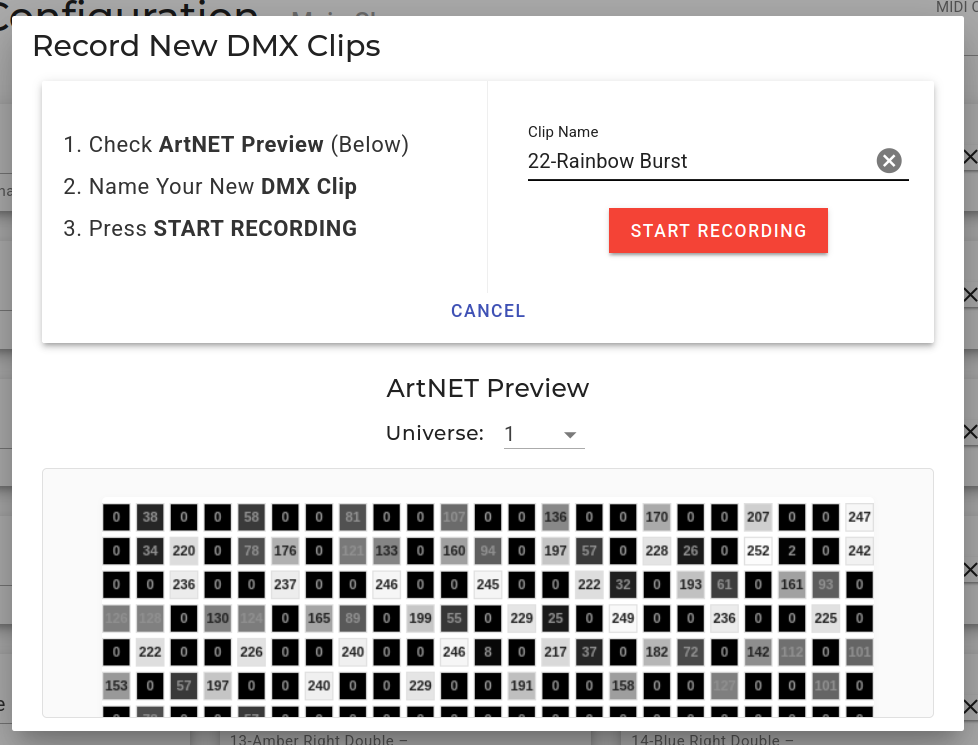
Before recording, look at the **ArtNET Preview** grid in the dialog box.
* **Play a Cue**: Fire a lighting cue in your software.
* **Check Preview**: You should see the grid pixels dancing *AND* your physical lights connected to the node should light up.
* *If the grid moves but physical lights don't:* Check your Ethernet connection, and Node IP.
* *If nothing moves:* Check your Software Output Interface (Step 4).
#### Step 3: Capture
1. **Name Your Clip**: Enter a descriptive name (e.g., "Chorus Strobe").
2. **Arm the Recorder**: Press the red **START RECORDING** button.
3. **Wait for Data**: The MVP is now "Armed" and listening, but it will not begin recording until it detects the first change in DMX values. This feature ensures your clips are perfectly tight, with no empty "dead air" at the beginning of the clip.
4. **Perform**: Play your lighting cue in your lighting software. As soon as the MVP detects a value change on *any* DMX channel, it will instantly start recording.
5. **Stop**: Press **STOP RECORDING**.
The new clip will immediately appear in your Unassigned Clips list, ready to be mapped to a MIDI note.