> For the complete documentation index, see [llms.txt](https://support.4cast.world/llms.txt). Markdown versions of documentation pages are available by appending `.md` to page URLs; this page is available as [Markdown](https://support.4cast.world/archive-v12-userguide/3.-lighting-setup/recording-artnet-lighting-desk.md).
# Recording ArtNET - Lighting Desk
The MVP supports recording and playback of up to 16 Universes. This guide covers how to record lighting clips onto your MVP using a physical lighting console (such as GrandMA, Avolites, ChamSys, etc.).
***
### 1. The Concept (The Network Switch)
Unlike the Software workflow which uses USB, recording from a physical desk requires an Ethernet connection.
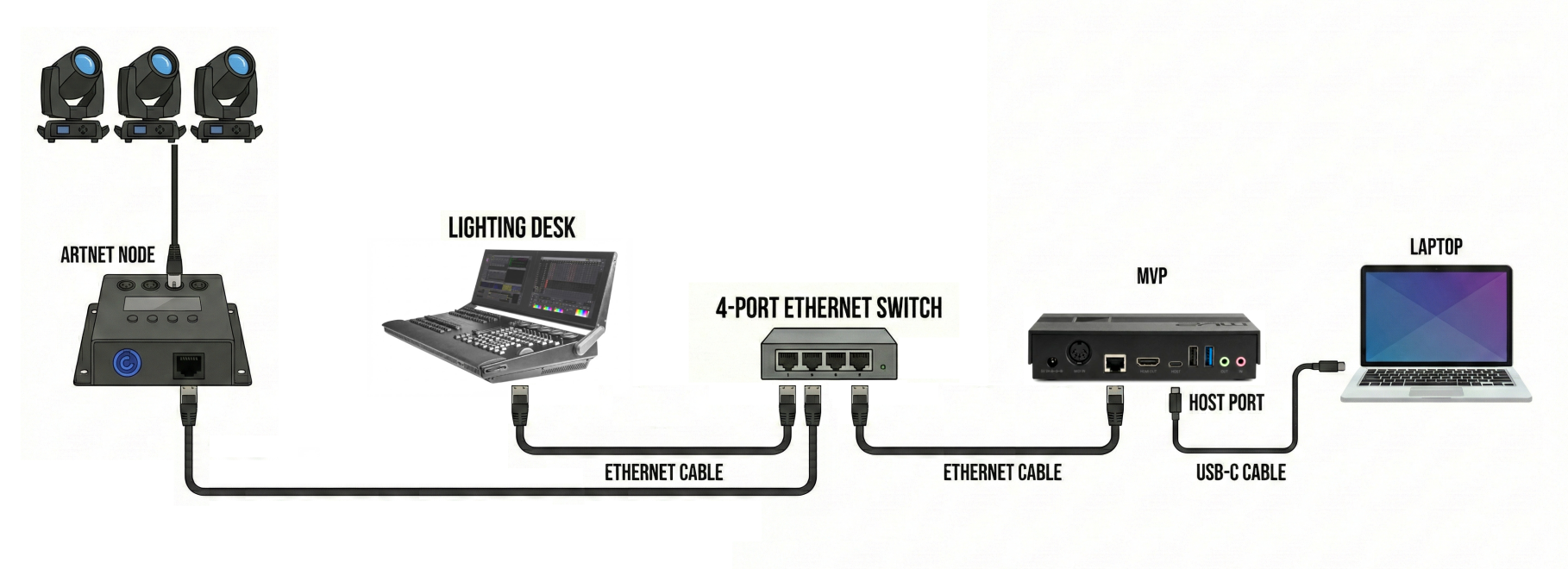
Because the MVP has a single Ethernet port, it cannot "pass through" Ethernet data to your lights while simultaneously receiving it from the console. Therefore, we use a standard Network Switch to create a shared network.
How it works:
1. Your Console broadcasts ArtNet data into the Network Switch.
2. The Switch splits this signal to all connected devices.
3. The MVP receives the data to record it.
4. Your ArtNet Node receives the same data to drive the lights.
Result: You can see your physical lights react in real-time while you record, ensuring your looks are perfect before capturing.
***
### 2. Hardware Connections
You will need a basic [Gigabit Network Switch](https://www.google.com/search?q=Gigabit+Network+Switch) and three Ethernet cables.
1. **Console to Switch**: Connect your Lighting Desk's Ethernet port to the Switch.
2. **MVP to Switch**: Connect the MVP's ETHERNET port to the Switch.
3. **Node to Switch**: Connect your ArtNet Node to the Switch.
***
### 3. Network Configuration (Crucial Step)
For ArtNet to work, all three devices (Console, MVP, and Node) MUST be on the same IP range. The industry standard for ArtNet is the `2.x.x.x` range.
#### A. IP Address Rules
Set all devices to Static IP addresses. They must share the first number (2) and the Subnet Mask, but the last number must be unique.
* **Subnet Mask**: Set ALL devices to `255.0.0.0`
Recommended IP Map:
* **Lighting Console**: `2.0.0.20`
* **ArtNet Node**: `2.0.0.10`
* **MVP Ethernet**: `2.0.0.111`
* *To configure your MVP:* Go to **Dashboard** > **Settings** > **Ethernet** and enter the IP/Subnet manually.
***
### 4. Console Setup
Configure your lighting desk to output ArtNet to the network.
1. **Enable ArtNet**: Go to your console's Network/DMX Protocols settings and enable ArtNet Output.
2. **Broadcast Mode**: Ensure the Output Mode is set to Broadcast.
* *Why?* Broadcast sends the data to everyone on the network. If you use "Unicast," you would have to tell the console to send data specifically to the MVP's IP address, which is more complex to set up.
3. **Universe Mapping**: Ensure your console is outputting the correct universes (e.g., Universe 1–16).
***
### 5. Recording Process
#### Step 1: Recording Dialog Box
1. Navigate to the Lighting tab on the MVP UI.
2. Toggle **EDIT MODE** to **ON**.
3. Click the **RECORD NEW CLIP** button on the right sidebar.
#### Step 2: Verify Signal
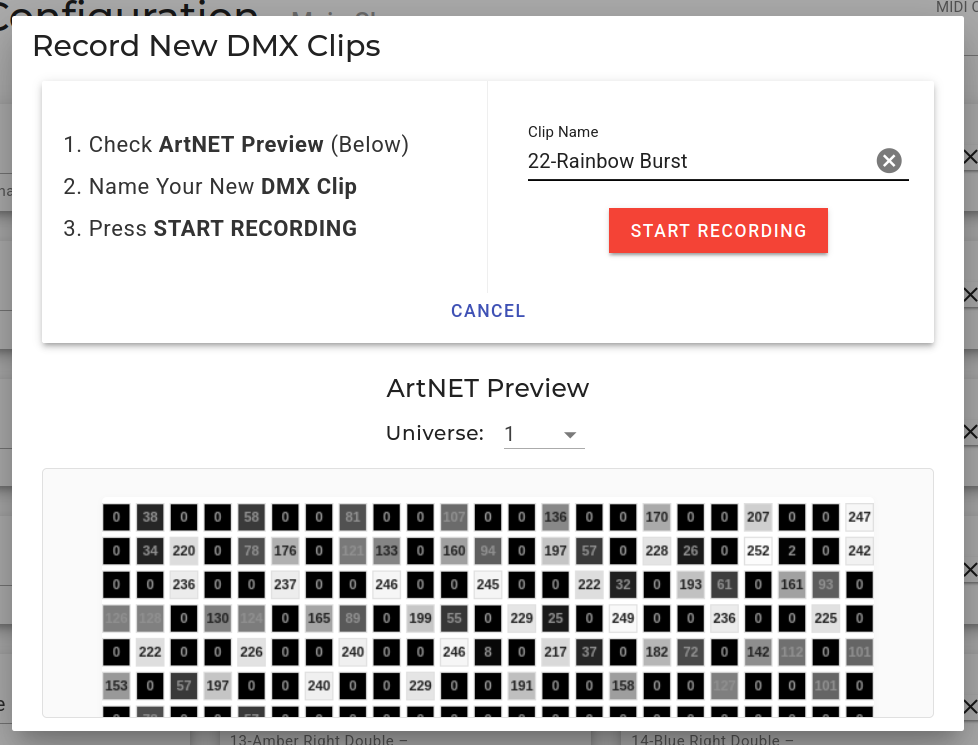
Before recording, look at the ArtNET Preview grid in the dialog box.
1. **Play a Cue**: Fire a lighting cue on your console.
2. **Check Preview**: You should see the grid pixels dancing in the MVP UI AND your physical lights connected to the node should light up.
* *If the lights work but the MVP grid doesn't move:* Check the MVP's IP settings.
* *If nothing works:* Check your Console's output settings and the Network Switch power.
#### Step 3: Capture
1. **Name Your Clip**: Enter a descriptive name (e.g., "Verse Blue Wash").
2. **Arm the Recorder**: Press the red START RECORDING button.
3. **Wait for Data**: The MVP is now "Armed" and listening. It will not begin recording until it detects the first change in DMX values. This ensures your clips are tight, with no "dead air" at the start.
4. **Perform**: Play your lighting cue on the console. The MVP will instantly start recording as soon as the values change.
5. **Stop**: Press STOP RECORDING.
The new clip will immediately appear in your Unassigned Clips list, ready to be mapped to a MIDI note.
#### Step 4: Test Your New Clip (Crucial)
Once your clip is recorded, you will want to play it back to see how it looks.
⚠️ **IMPORTANT**: Before you trigger the clip on the MVP, you MUST stop your lighting console from outputting ArtNet.
**The "Glitch" Effect**: Even if your console faders are at zero, the desk is likely still broadcasting "0" values to the network 40 times a second. If the MVP tries to send lighting data to the node while the console is also sending "zeros," the two signals will fight. This results in flickering, strobing, or glitching lights.
How to Test Cleanly:
1. **Silence the Console**: Either disable ArtNet Output in your console's settings OR simply unplug the Ethernet cable connecting the Console to the Switch.
2. **Assign the Clip**: On the MVP Lighting page, assign your new clip to a MIDI Note (e.g., `DMX 01`).
3. **Trigger**: Send that MIDI note to the MVP.
4. **Verify**: Your lights should play back the recorded look smoothly, exactly as it was captured.
*Once you are finished testing, remember to re-enable your console output to record the next look.*