> For the complete documentation index, see [llms.txt](https://support.4cast.world/llms.txt). Markdown versions of documentation pages are available by appending `.md` to page URLs; this page is available as [Markdown](https://support.4cast.world/archive-v12-userguide/2.-videos-setup/search-stock-videos.md).
# Search Stock Videos
## Stock Videos Library
*For instructions on connecting to the MVP and accessing the user interface, please refer to the \[*[*The User Interface (UI)*](/archive-v12-userguide/1.-getting-started/the-user-interface-ui.md)*] guide.*
***
### Overview
The MVP includes direct access to a massive library of over half a million **royalty-free** stock videos. You can search, preview, and download content directly to your MVP.
Prerequisite: Your MVP must be connected to the internet via Wi-Fi to browse and download stock content.
***
### 1. Accessing the Library
1. Navigate to the **Videos** tab on the left-hand sidebar of the MVP UI.
1. Click the blue **SEARCH STOCK VIDEOS** button located on the right-hand column.
***
### 2. Searching & Browsing
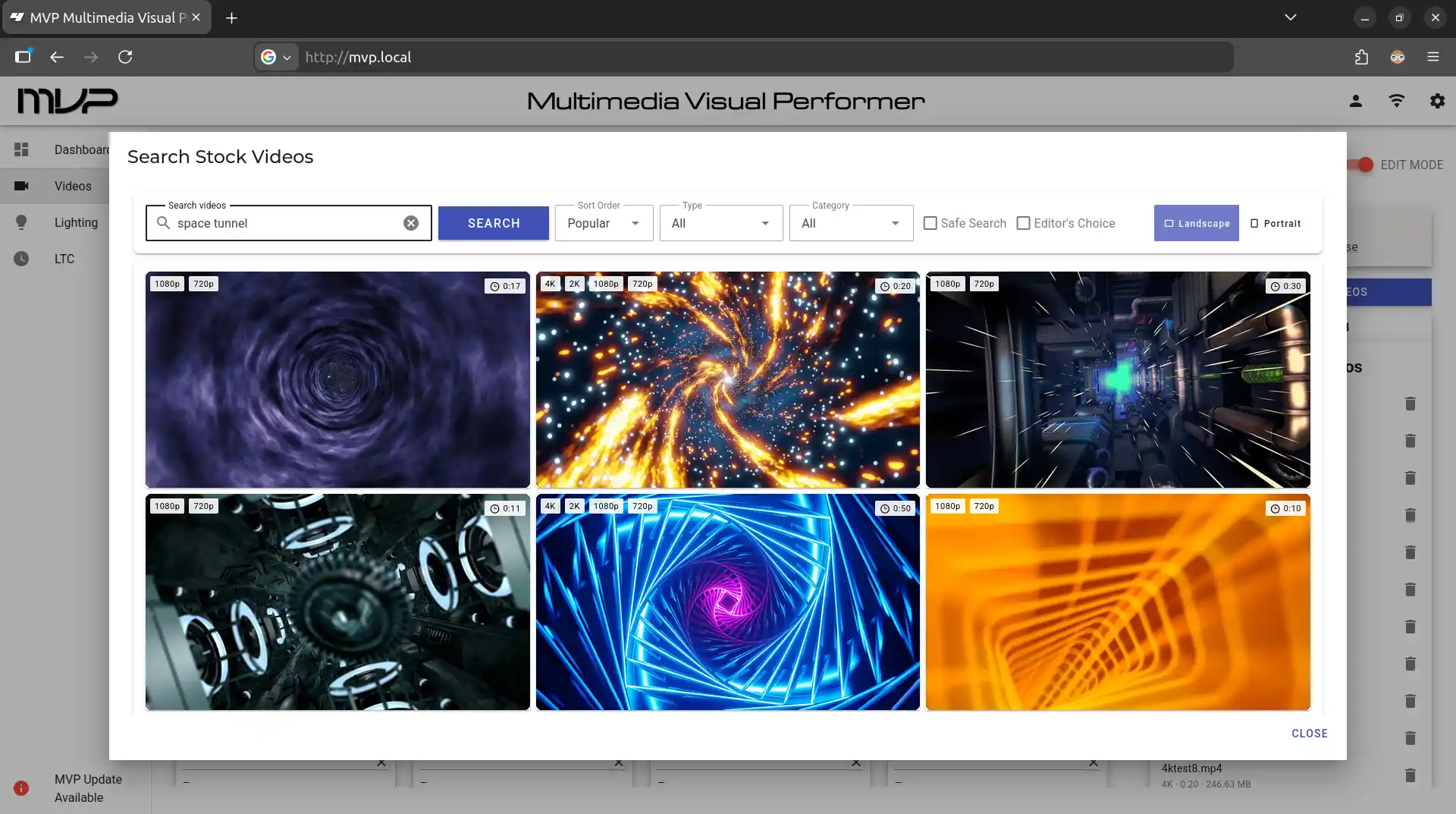
Once the dialog box opens, you can find the perfect video for your show. Each search will show up to hundreds of videos to choose from:
* Search Bar: Type any keyword (e.g., "Ocean," "Cyberpunk," "Abstract").
* Filters: Use the dropdown menus to filter by Category, Type, etc.
***
### 3. Preview & Resolution Selection
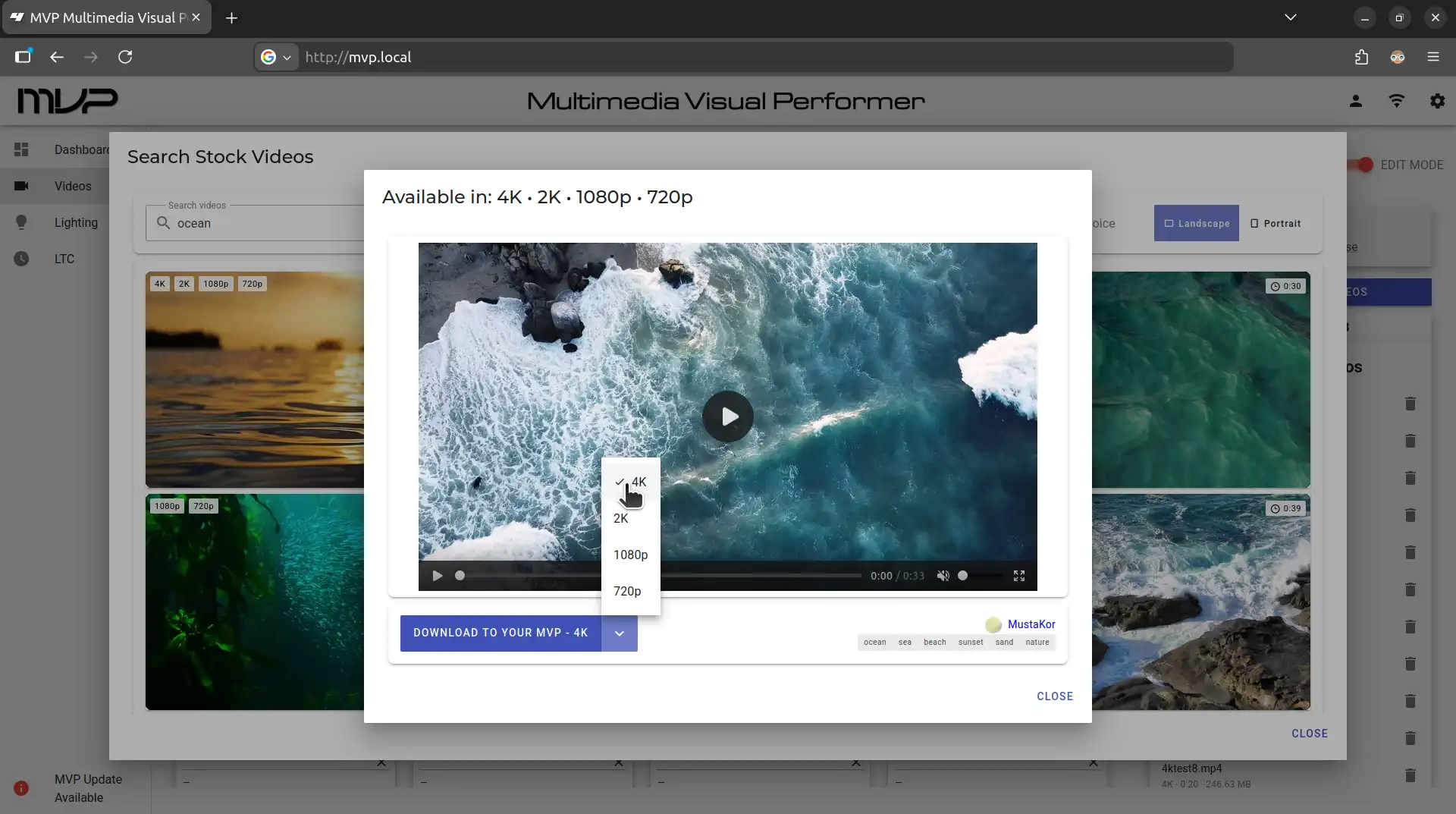
Click on any thumbnail to open the Preview Window.
* **Preview**: Press the play button to preview the video before downloading.
* **Resolution Selector**: Use the dropdown menu to choose your desired resolution
***
### 4. Naming & Downloading
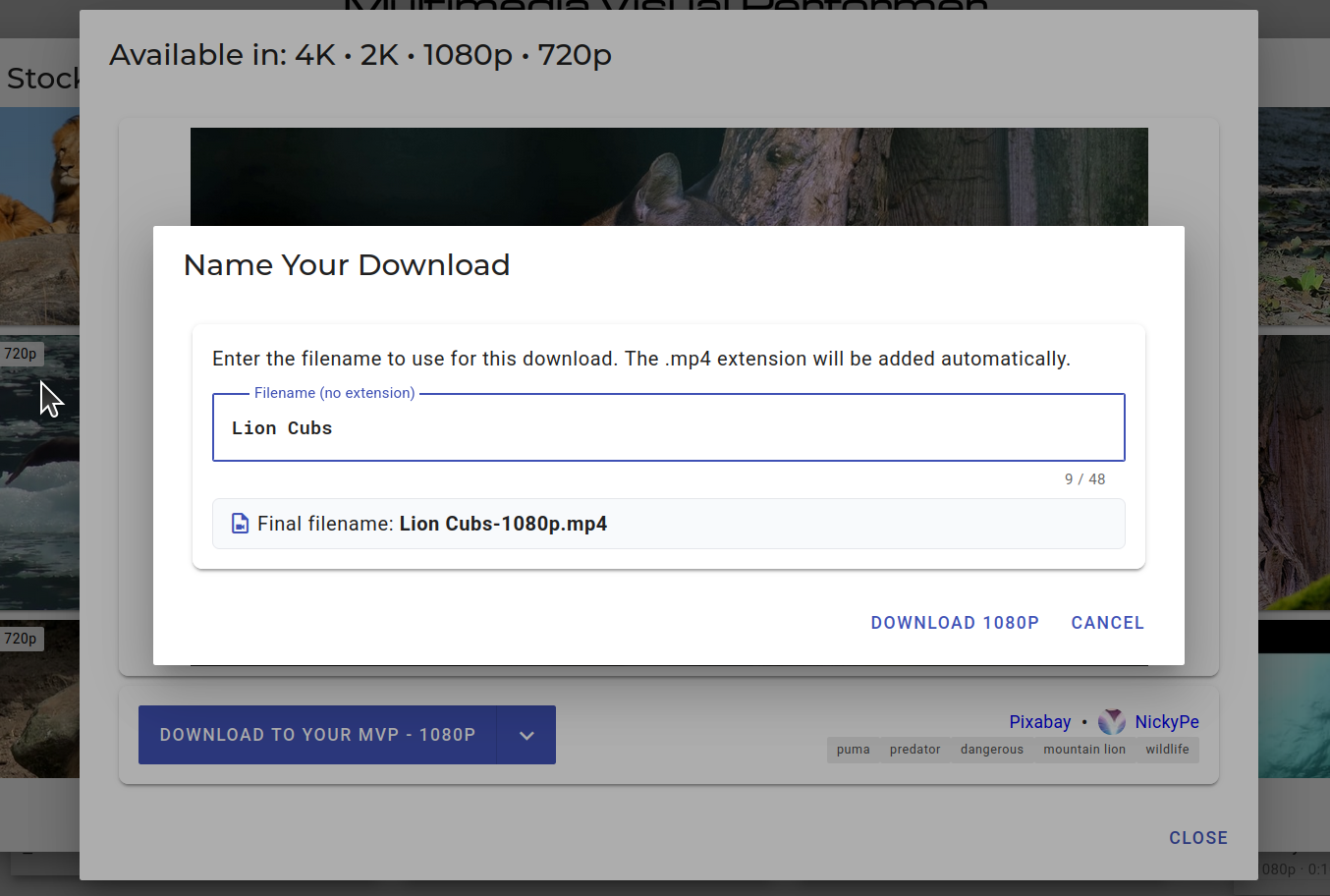
After selecting your resolution, click the Download button.
1. Name Your File: Enter a custom filename for the clip (the `.mp4` extension is added automatically).
2. Confirm: Click the DOWNLOAD button to save it to your MVP.
The video file will automatically appear in your **Unassigned Videos** List once the download is complete.