> For the complete documentation index, see [llms.txt](https://support.4cast.world/llms.txt). Markdown versions of documentation pages are available by appending `.md` to page URLs; this page is available as [Markdown](https://support.4cast.world/archive-v12-userguide/2.-videos-setup/effects-mode.md).
# Effects Mode
Effects Mode enables real-time video color and transformation effects, controlled by MIDI CC messages. This turns the MVP from a simple player into a live performance tool for VJs and creative workflows.
> ⚠️ IMPORTANT NOTES
>
> * Resolution: Effects Mode supports video playback up to 1080p 60fps. 4K videos are NOT supported in this mode.
> * Playback Interruption: Switching the Video Mode will immediately stop any currently playing video or lighting cue.
***
### 1. How to Enable Effects Mode
Because this is an advanced feature, it must be enabled in the settings first.
1. Enable Beta Features:
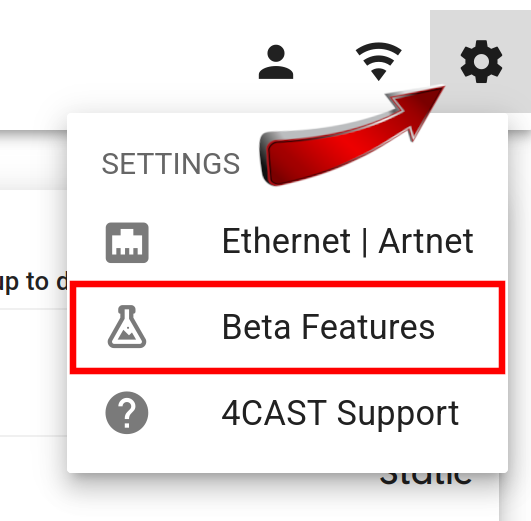
* Click the Settings Cog ⚙️ in the top right corner of the dashboard.
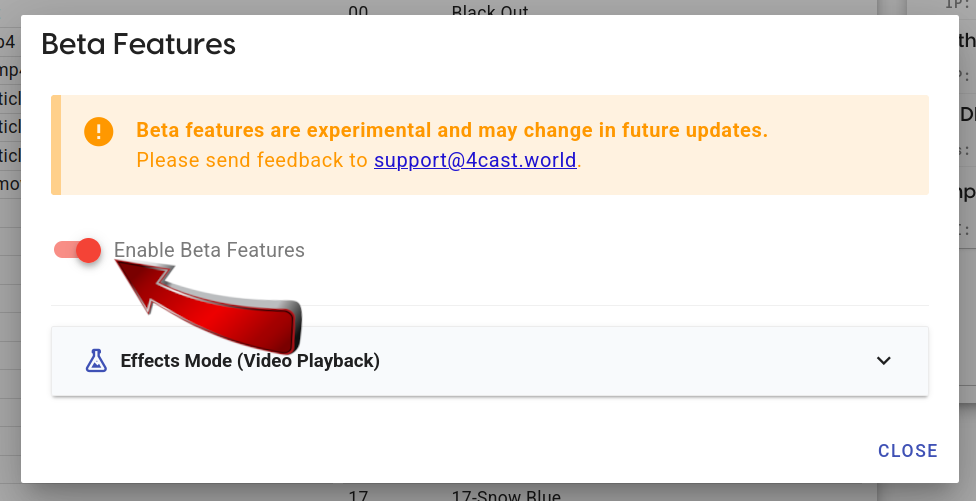
* Select Beta Features.
* Toggle the switch to Enable.
1. Activate Effects Mode:
* Navigate to the **Videos** tab, and enable **EDIT MODE**.
* Use the **Video Mode** dropdown at the top of the page to select **Effects**.
*
```
```
* Confirm the warning dialog to switch modes.
Your MVP is now ready.
***
### 2. MIDI CC Controls
Assign these MIDI CC numbers to knobs or faders on your controller to manipulate video in real-time.
| **Parameter** | **CC Number** | **Description** |
| ------------- | ------------- | ------------------------- |
| Brightness | CC 48 | Adjusts video brightness. |
| Contrast | CC 49 | Adjusts video contrast. |
| Hue | CC 50 | Shifts color hue. |
| Saturation | CC 51 | Adjusts color intensity. |
| Rotation | CC 52 | Rotates the video frame. |
| Scale | CC 53 | Zooms in/out. |
| Position X | CC 54 | Moves video Left/Right. |
| Position Y | CC 55 | Moves video Up/Down. |
#### Default Values
* **Standard Center**: Most effects (Brightness, Scale, Position, etc.) use a default value of **64** (Midpoint).
* **Rotation**: The default value is **0** (No rotation).
***
### 3. Resetting Effects (MIDI Notes)
You can instantly snap an effect back to its default state by sending a specific MIDI Note (on the Video MIDI Channel).
| **Reset Function** | **MIDI Note** |
| ------------------ | ------------- |
| RESET ALL EFFECTS | Note 110 |
| Reset Brightness | Note 111 |
| Reset Contrast | Note 112 |
| Reset Hue | Note 113 |
| Reset Saturation | Note 114 |
| Reset Rotation | Note 115 |
| Reset Scale | Note 116 |
| Reset Position X | Note 117 |
| Reset Position Y | Note 118 |
> ⚠️ IMPORTANT NOTES
>
> * Resolution: Effects Mode supports video playback up to 1080p 60fps. 4K videos are NOT supported in this mode.
> * Playback Interruption: Switching the Video Mode will immediately stop any currently playing video or lighting cue.