> For the complete documentation index, see [llms.txt](https://support.4cast.world/llms.txt). Markdown versions of documentation pages are available by appending `.md` to page URLs; this page is available as [Markdown](https://support.4cast.world/archive-v12-userguide/1.-getting-started/update-your-mvp.md).
# Update Your MVP
We release feature updates and improvements 3–4 times per year. Keeping your MVP up to date ensures you have the latest features and stability improvements.
#### How to Update
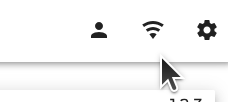
1. On the MVP UI, click the Wi-Fi Icon to connect your MVP to the internet.
2. Check for Updates:
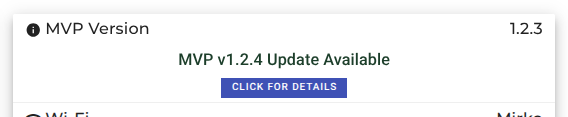
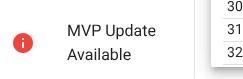
* When an update is available, a notification will automatically appear on the Dashboard.
* *Note: MVP's on the older version (1.0.x):* Click the MVP VERSION tab in the bottom-left corner.
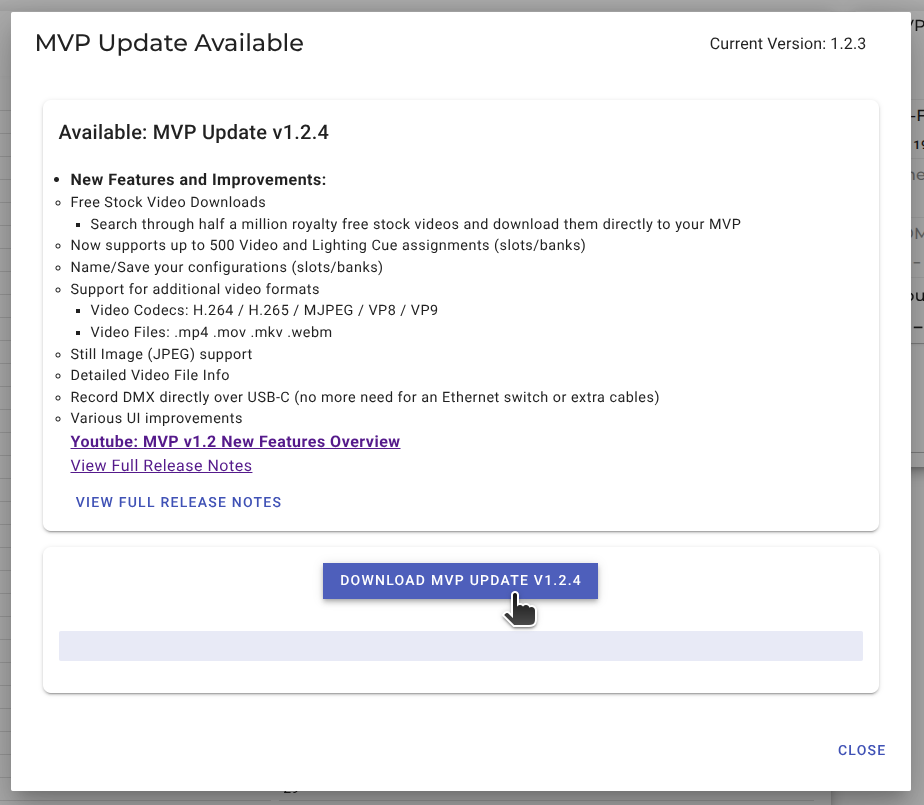
3. Click Details to view release notes, then press the Download button. The MVP will request the package from the cloud and begin downloading (this may take a few minutes).
4. Click Apply Update. You will be shown an important warning dialog box. Read the warning, and when you're ready, click PROCEED to begin the update process.
> ⚠️ CRITICAL WARNING: DO NOT power off the MVP during the update process. Once you click "Proceed," be careful not to touch your MVP or the USB cable. Interruption during this process will render the device non-functional.
>
> Wait until the update process is complete and the browser refreshes before touching the device.