> For the complete documentation index, see [llms.txt](https://support.4cast.world/llms.txt). Markdown versions of documentation pages are available by appending `.md` to page URLs; this page is available as [Markdown](https://support.4cast.world/archive-v12-userguide/1.-getting-started/the-user-interface-ui.md).
# The User Interface (UI)
Your Control Center.
The MVP features a powerful, built-in web interface that allows you to manage content, configure settings, and monitor performance in real-time. Because the software lives inside the device, you don't need to install any drivers or apps on your computer.
This guide covers how to access the interface and navigate its layout.
## 1. Connect & Power Up
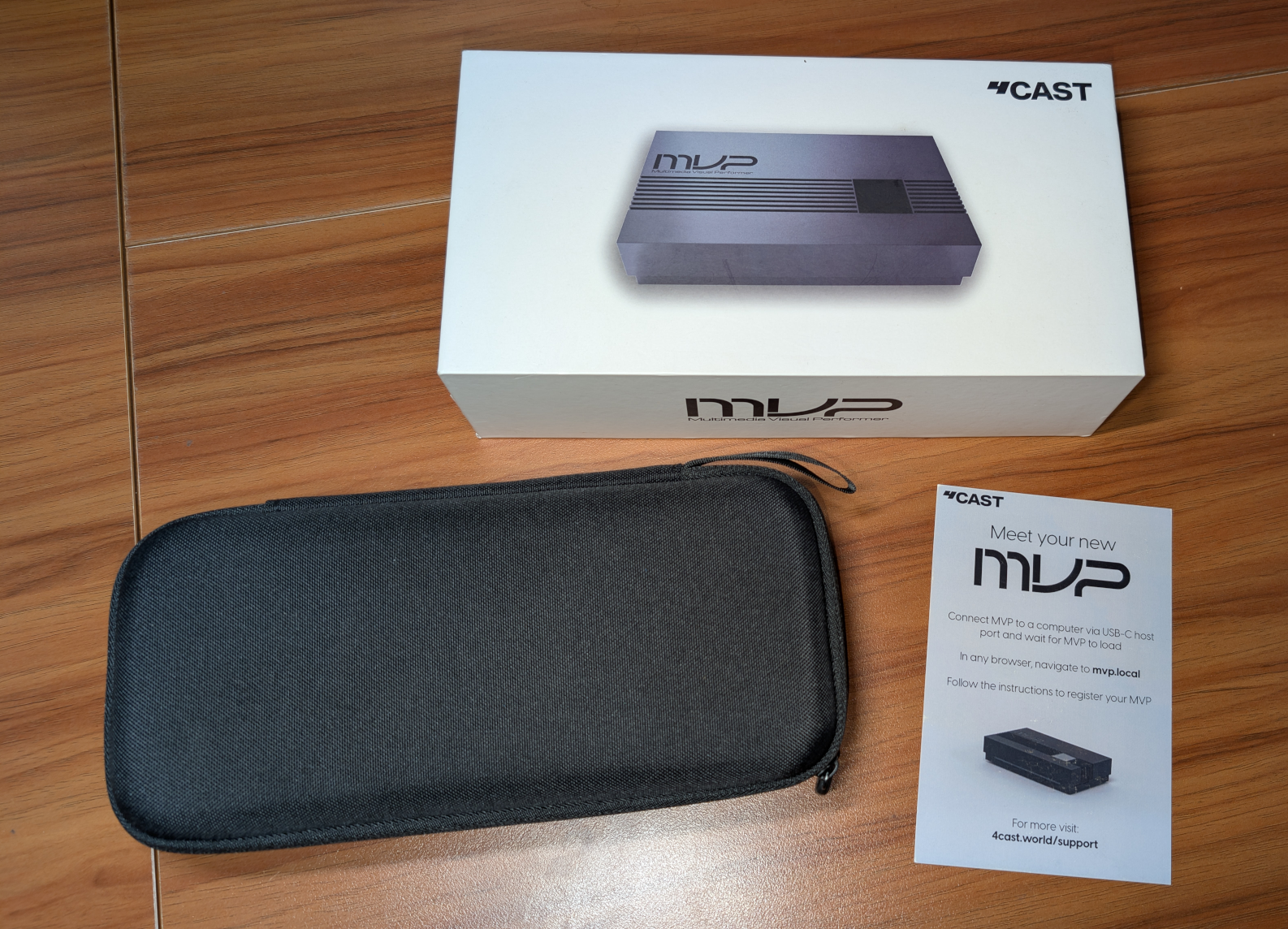
1. **Unbox**: Open the travel case. You will find the MVP unit, USB cables, mounting screws, and a power adapter.
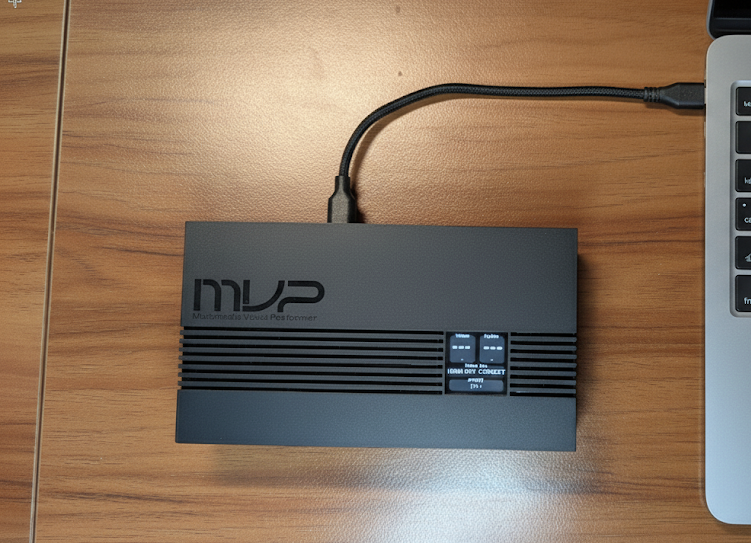
2. **Connect**: Use the included USB-C cable to connect the MVP 'HOST' Port to your computer.
* ***Note**: The MVP powers on automatically via USB connection.*
3. **Verify**: After a few seconds, the Status Display on your MVP will light up.
***
## 2. Access the UI
1. **Open Browser**: On your connected computer, navigate to `http://mvp.local`.
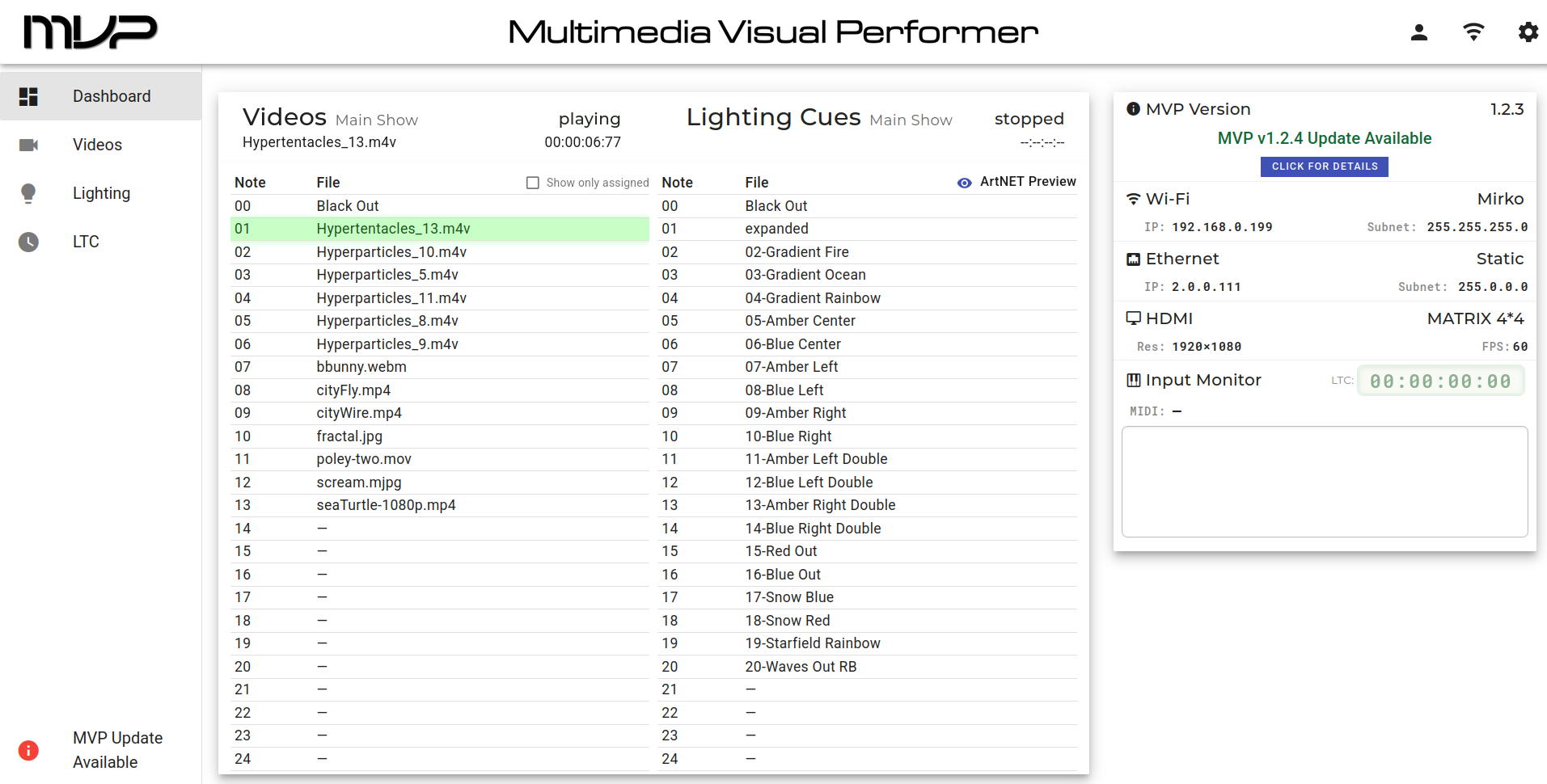
1. **Settings Icons**: Once the Dashboard loads, you'll notice three icons on the top right corner.
* **User Icon**: Opens the MVP Registration dialog box.
* **WIFI Icon**: Opens the WIFI Connection dialog box.
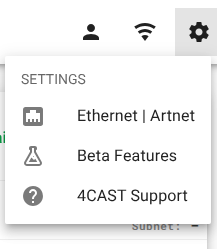
* **Settings Icon**: Provides access to Ethernet Settings, Beta Features, and this support site.
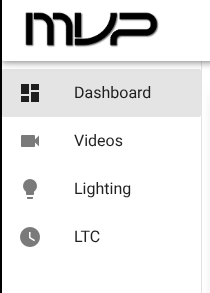
2. **Nav Bar Links**: On the left side of the UI, you can navigate between the Dashboard, Videos, Lighting, and LTC Timecode configuration pages.
Note: You can find details about each of those pages in their respective support docs.
## 3. Network Access
Once you have connected your MVP to WIFI, you can access the MVP UI without connecting USB to your computer. You can even access it from another room.
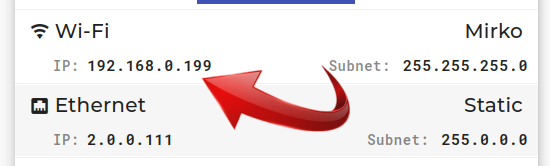
On your dashboard page, you will see the IP address that your Internet router has assigned to your MVP.
Anytime your MVP is powered on and connected to WIFI, you can use that IP address in your browser